Add someone to help manage your Google Business Profile

1 min read
Step 1: Install and open the Google Maps app on your cellphone (Add someone to help manage your Google Business Profile)

Follow these instructions to add another person to help manage your Google business profile.

Computer Instructions

If you are using a cellphone, scroll down to the bottom for cellphone instructions

Step 1: Visit the following link and log into your Google Business Profile account

https://business.google.com

Step 2: Click “See your profile”

Step 2: Click "See your profile" (Add someone to help manage your Google Business Profile)

Step 3: Click on the three dots and select “Business Profile settings”
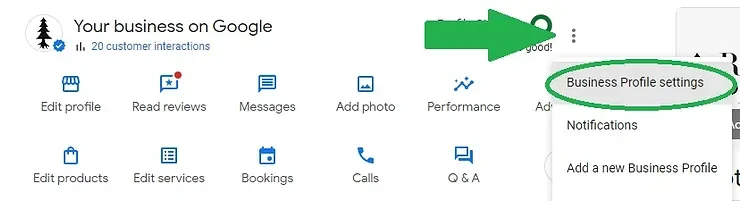
Step 3: Click on the three dots and select "Business Profile settings" (Add someone to help manage your Google Business Profile)

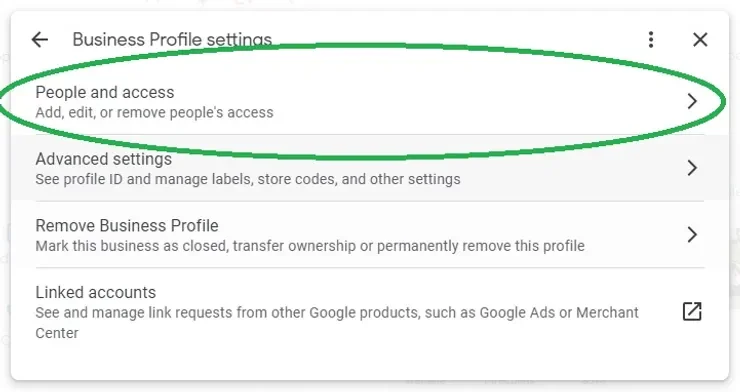
Step 4: Click on “People and Access”

Step 4: Click on "People and Access" (Add someone to help manage your Google Business Profile)

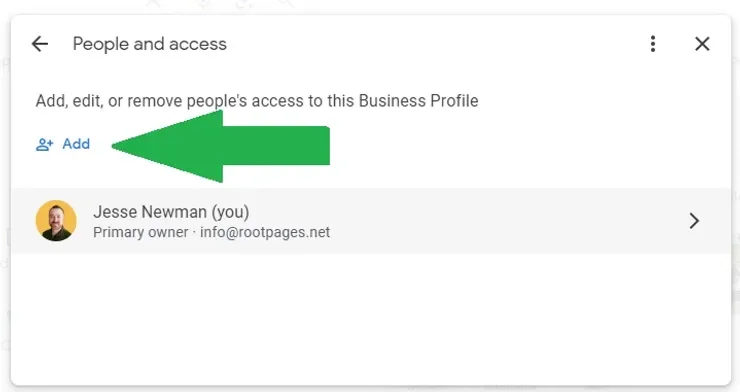
Step 5: Click “Add”

Step 5: Click "Add" (Add someone to help manage your Google Business Profile)

Step 6: Type in the person’s email address and select Manager

(Important) Do not grant “Primary Owner” unless you intend to transfer ownership of the Google Business Profile to that person.

The person you have invited should receive an invitation email to start managing your profile. It is best to contact them as soon as possible to confirm they have received this invitation.
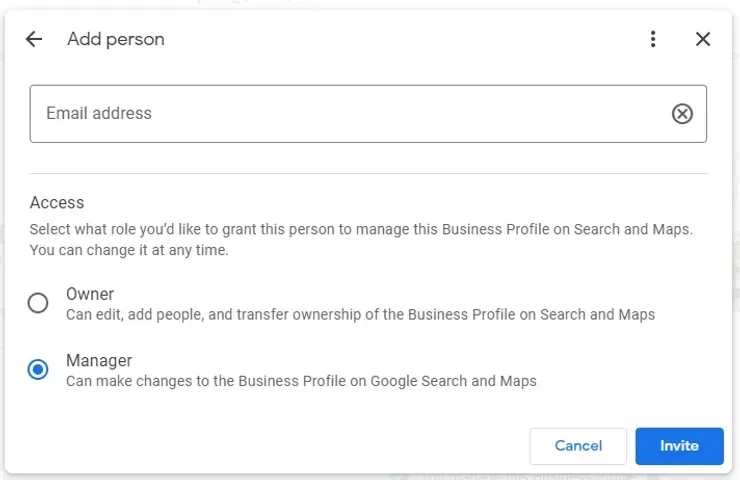
Step 6: Type in the person's email address and select Manager (Add someone to help manage your Google Business Profile)

Cellphone Instructions

Step 1: Install and open the Google Maps app on your cellphone

Step 2: Make sure you are signed into the account you use to manage your Google Business Profile.

Step 3: At the bottom right corner of the app, tap on the “Business” button, then select “See Business Profile” at the top.
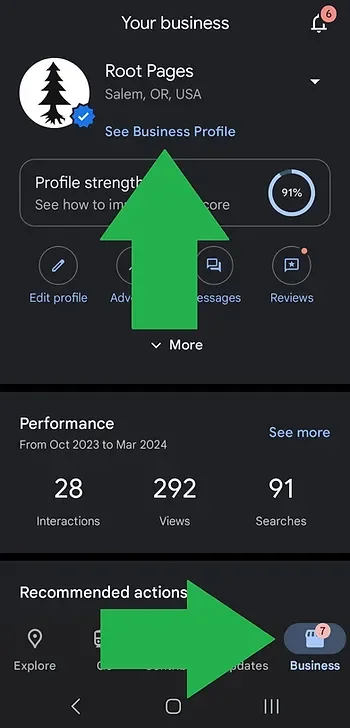
Step 3: At the bottom right corner of the app, tap on the "Business" button, then select "See Business Profile" at the top. (Add someone to help manage your Google Business Profile)

Step 4: Click on the three dots at the top right and select “Business Profile settings”
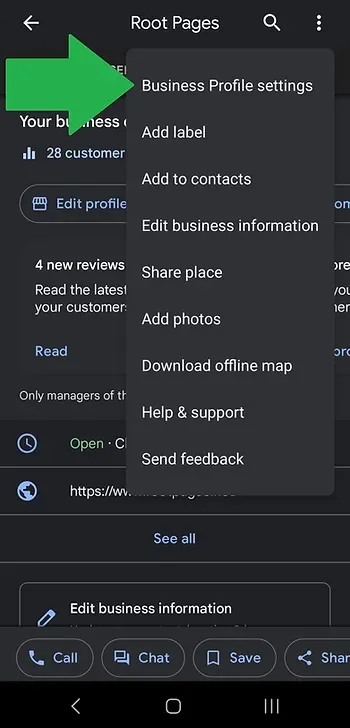
Step 4: Click on the three dots at the top right and select "Business Profile settings" (Add someone to help manage your Google Business Profile)

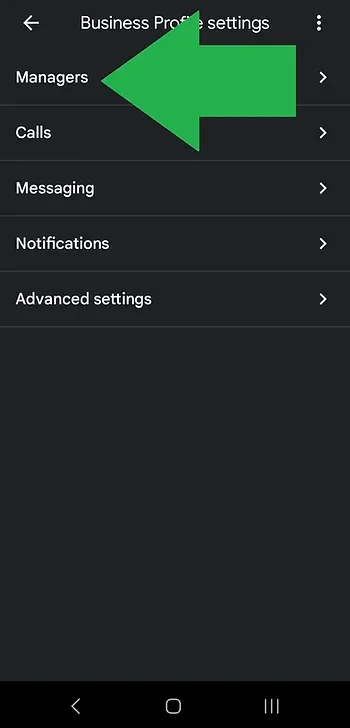
Step 5: Tap on “Managers”

Step 5: Tap on "Managers" (Add someone to help manage your Google Business Profile)

Step 5: Tap on “Add” and type in the email address of the person you’d like to add as a manager for your business profile.

(Important) Do not select Owner unless you intend on transferring ownership of the Google Business Profile to that person.
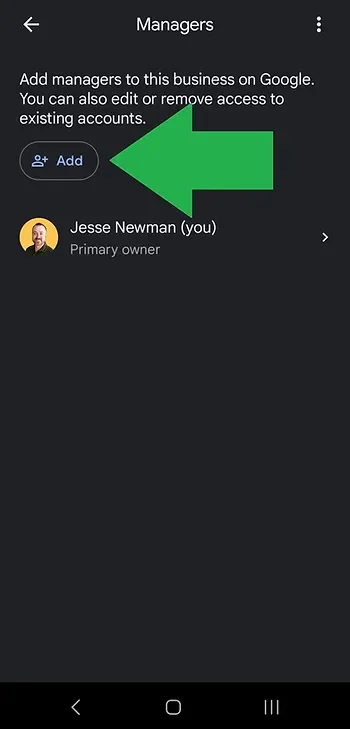
Step 5: Tap on "Add" and type in the email address of the person you'd like to add as a manager for your business profile. (Add someone to help manage your Google Business Profile)

Written by

Jesse Coraci

We build websites and run local marketing for small businesses from Eugene, Oregon. Want help putting this article into practice? Let’s talk about your business.

Free demo website

No risk, no obligation

Ready to put these ideas to work?

Reading about it is the first step. If you would rather have a team handle your website, SEO, Google Business Profile or ads, we are happy to help.

Start with a conversation.

Tell us about your business and what you would like to improve. A real person will reply.

Free demo

Get a free custom demo website.

Want to see what we can do? We’d be glad to create a one-page demo website for you to check out. It’s free, there’s no obligation, and no pushy salespeople will try to talk you into it.